Microsoft Office Package
Microsoft Office Package Course – Master Word, Excel, PowerPoint & Outlook Skills
Office Package Course in Nepal
Looking for the best Microsoft Office course in Dharan or Nepal?
Join the professional Microsoft Office Training at Code IT and learn to master Word, Excel, PowerPoint, and other essential Office tools for professional productivity.
This hands-on office productivity course is ideal for students across Nepal who want to strengthen their computer skills, gain practical experience, and develop job-ready Office expertise. You’ll create documents, spreadsheets, presentations, and reports used in real-world business and office environments.
Our training program offers live online classes accessible from anywhere in Nepal, along with hands-on classroom sessions in Dharan. Develop practical Office skills, work on real projects, and prepare for professional opportunities in administration, business, and IT support roles.
Master Microsoft Office tools, improve productivity, and gain the confidence to work efficiently in today’s professional environment.
Looking for the best Microsoft Office course in Dharan or Nepal?
Join the professional Microsoft Office Training at Code IT and learn to master Word, Excel, PowerPoint, and other essential Office tools for professional productivity.
This hands-on office productivity course is ideal for students across Nepal who want to strengthen their computer skills, gain practical experience, and develop job-ready Office expertise. You’ll create documents, spreadsheets, presentations, and reports used in real-world business and office environments.
Our training program offers live online classes accessible from anywhere in Nepal, along with hands-on classroom sessions in Dharan. Develop practical Office skills, work on real projects, and prepare for professional opportunities in administration, business, and IT support roles.
Master Microsoft Office tools, improve productivity, and gain the confidence to work efficiently in today’s professional environment.
Prerequisites

Microsoft Office Package
Next batch starting soon

Have any Question?
Everything You Receive
All-inclusive support — from training to real-world experience
Live Classes
Google
Meet
8:00 PM - 9:30 PM
Lifetime Videos
Re-watch anytime
Certification
Industry recognized
Internship
No internships are available right now.
Course Curriculum
Everything you'll learn — from fundamentals to advanced concepts
Course Outlines
-
Microsoft Word (Document Creation)
-
Microsoft Excel (Spreadsheets & Data Analysis)
-
Microsoft PowerPoint (Presentations)
-
Integration & Real-World Projects
Full Curriculum
01
Introduction and Text Formatting in MS Word
02
Working with Objects
03
Styles & Content and Tables
04
Links, Symbol and Page background
05
Layout and Protect
06
Merging Documents and OCR
07
Macros and Proofing the document and Printing
08
Introduction to Excel and Formatting Excel Work Book
09
Data entry and Formatting
10
Number, Editing and Table
11
Excel Data Analysis
12
Perform Calculations with Functions
13
Power Query
14
Automated Data Entry Form
15
Page Setup
16
Introduction to MS PowerPoint Interface and Advanced Features
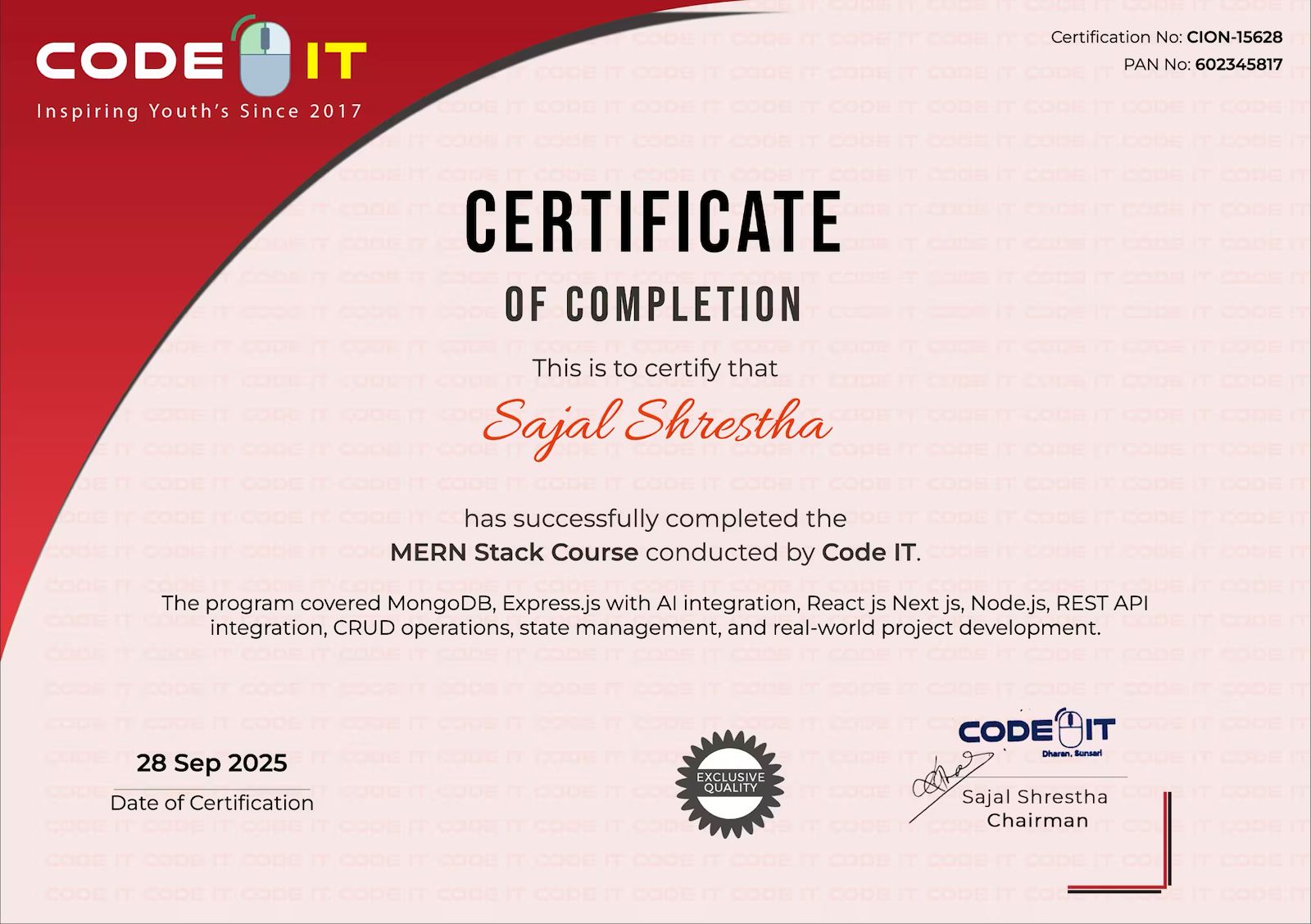
Earn Your Certification
After completing the course, you will receive a professional certificate from Code IT, verified by industry leaders in Nepal.
Course Mentors
Learn directly from industry experts with years of hands‑on experience

Sita Katuwal
Ms office package & Tally Instructor
Need More Information?
Our team will respond within a few hours
Why Enquire?
Join 100k+ successful graduates
Similar Courses
Explore other programs that might interest you

Advanced Excel
Advanced Excel Training Course – Master Formulas, Pivot Tables & Data Analysis

Power BI
Build industry-ready dashboards and analytical skills employers value

Tally Prime
Tally Prime Course – Master Accounting & Financial Management with Tally Software